Screenshots
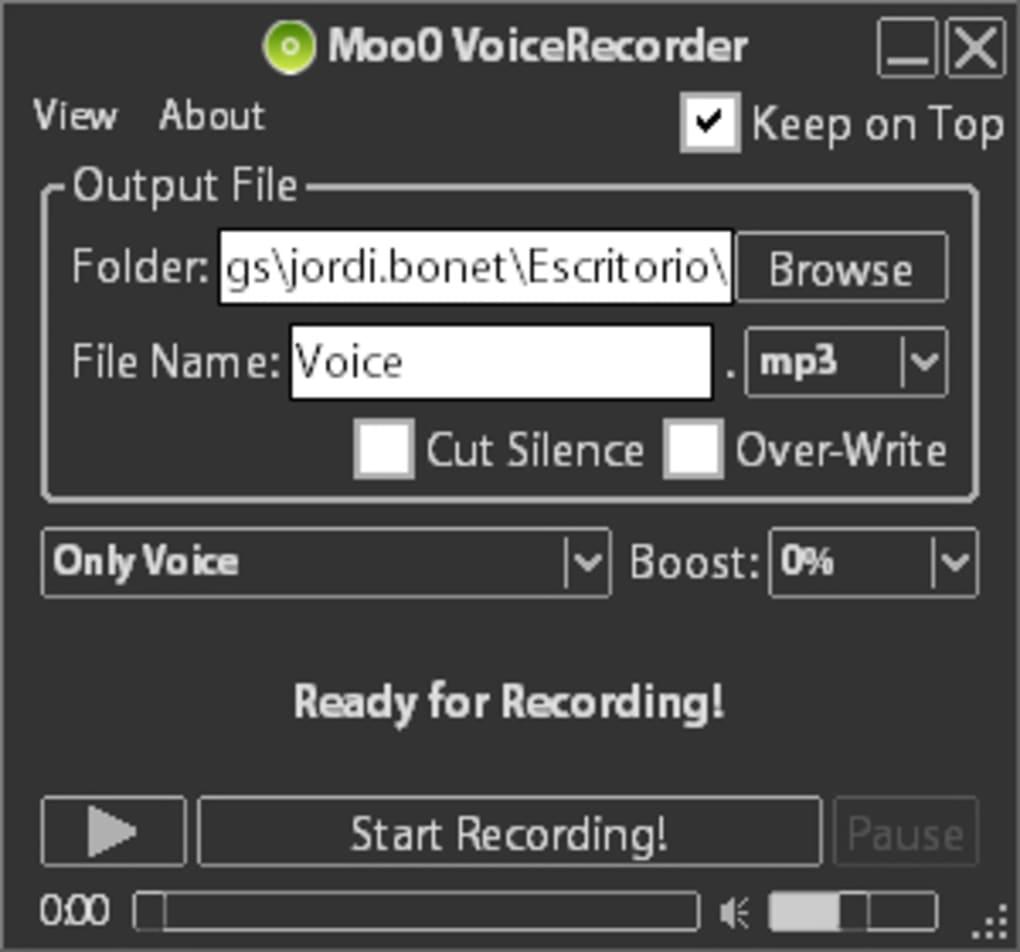
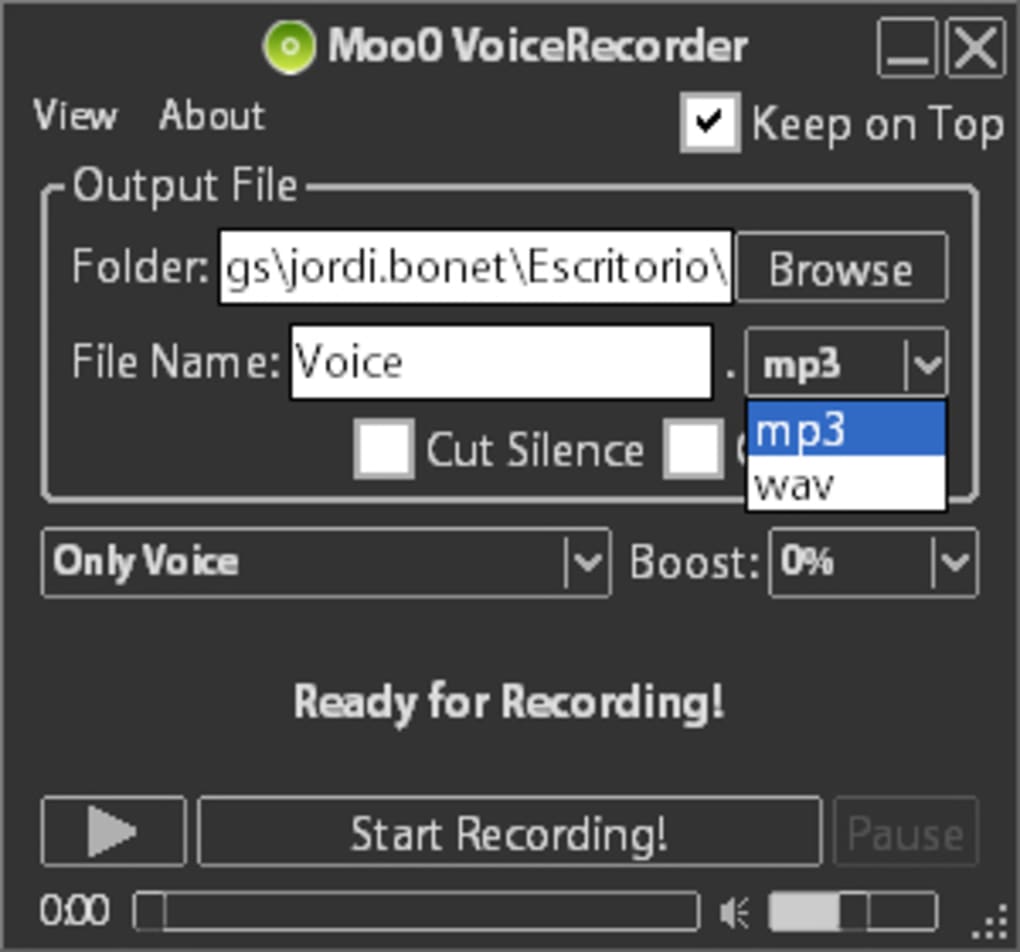
App details
- Version
- 1.29
- Size
- 3.74 MB
- Updated
- March 9, 2017
- Requires
- Windows 7
- Language
- English | Danish | German
- License
- Free
- Developer
- Moo0
- Category
- Windows OS
SoftPas in:
This product is also available in the following languages:
About Moo0 VoiceRecorder
Download Moo0 VoiceRecorder – Free Windows Voice Recording Tool
Overview
Moo0 VoiceRecorder is a lightweight, free communication utility designed exclusively for Windows computers. Since its debut in 2012, the program has attracted more than 12,000 downloads, largely from users in emerging markets such as India and the Philippines who value a straightforward, no‑frills solution for capturing audio. Built by the reputable developer Moo0, the recorder offers a clean, English‑language interface with additional language packs for German and Danish, making it accessible to a diverse audience.
The current release, version 1.29, was last updated on June 17 2012, which means the core functionality has remained stable for years. Despite its age, Moo0 VoiceRecorder continues to work reliably on legacy systems, supporting Windows XP and earlier editions—an advantage for users who still operate older hardware in schools, small businesses, or remote locations where upgrading the operating system is not feasible.
From a security standpoint, the installer is signed and free from bundled adware, allowing you to download and install the tool with confidence. The program occupies a fraction of a megabyte on disk, so it does not compete for valuable storage space on low‑capacity machines. Whether you need to record a voice memo, capture a conference call, or archive a tutorial for later reference, Moo0 VoiceRecorder delivers crisp audio without the complexity of professional‑grade DAWs (Digital Audio Workstations). Its simplicity is its strongest selling point, and it perfectly aligns with the “download‑and‑go” expectations of everyday Windows users.
Key Features
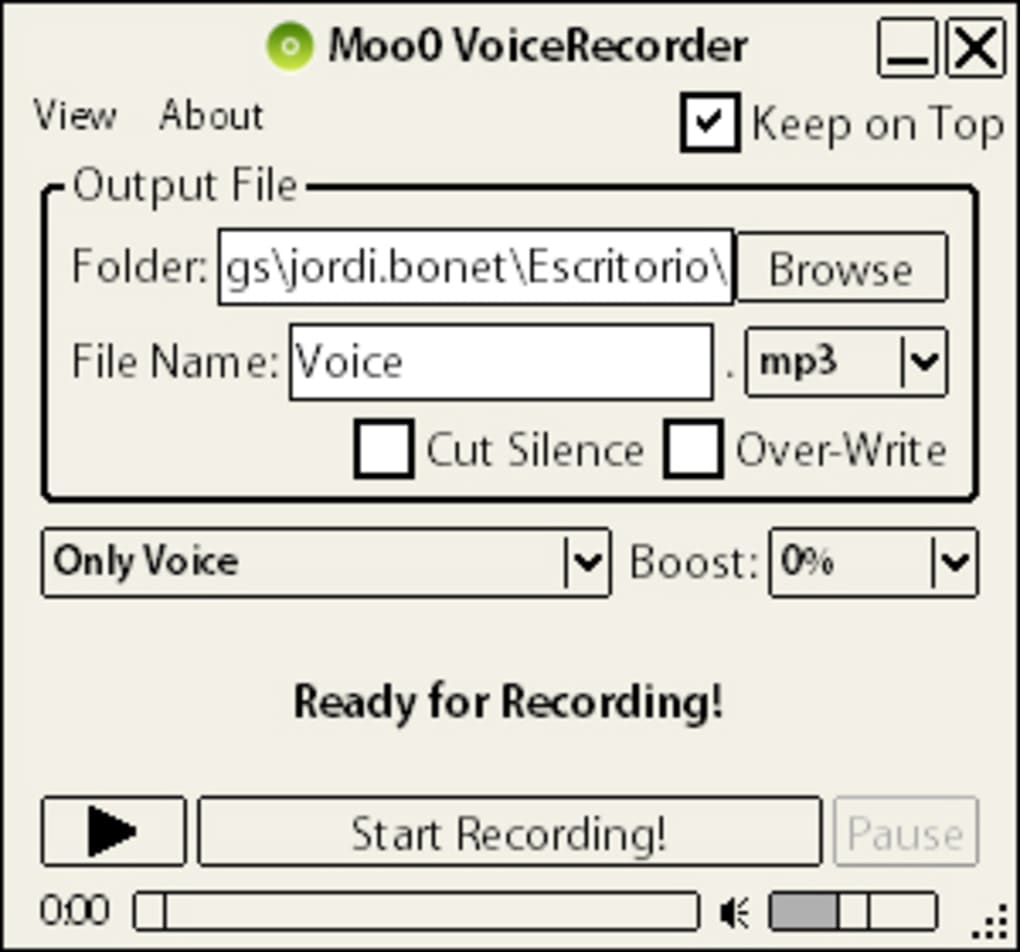
- One‑Click Recording: Start and stop audio capture with a single button, eliminating the need for menu navigation.
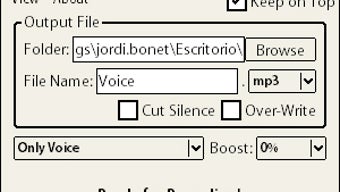
- Multiple Audio Formats: Save recordings as WAV, MP3, or OGG, giving you flexibility for playback on various devices.
- Automatic File Naming: The program generates timestamped file names to keep recordings organized without manual input.
- Adjustable Input Levels: Fine‑tune microphone gain directly within the interface to avoid clipping or low‑volume recordings.
- Background Operation: Minimize the window and let Moo0 VoiceRecorder continue recording silently in the system tray.
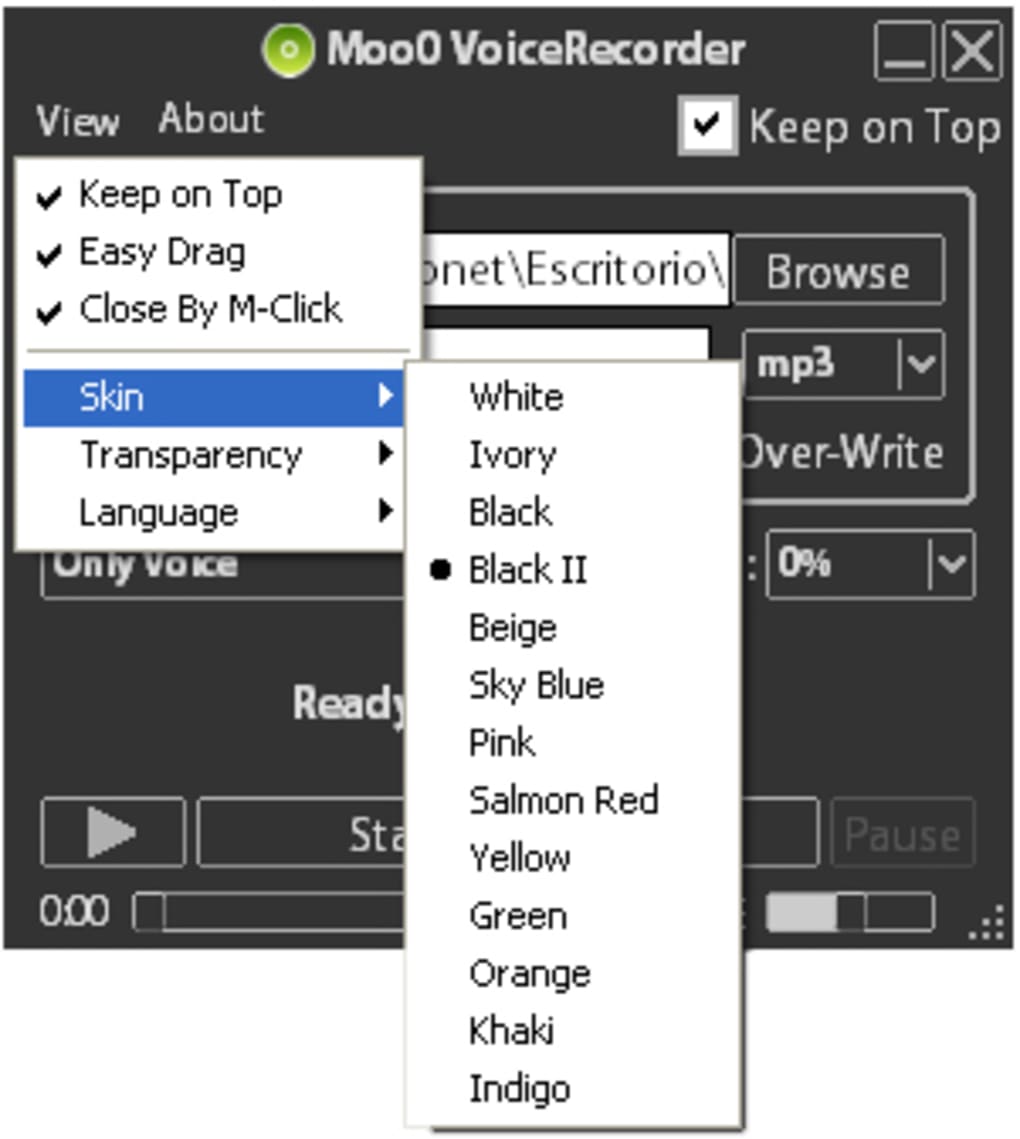
- Language Support: Available in English, German, and Danish, with easy language switching via the settings menu.
- Low Resource Consumption: Uses under 5 MB of RAM during recording, making it suitable for older PCs.
- Portable Version: A no‑install ZIP package lets you run the recorder from a USB stick on any compatible Windows machine.
Installation & Usage Guide
Step‑by‑Step Installation
Downloading and installing Moo0 VoiceRecorder is intentionally straightforward. Begin by clicking the “Download” button on the official Moo0 website or a trusted software repository. The installer file is typically named moo0voicerecorder_setup.exe and is under 2 MB in size. After the download completes, double‑click the executable to launch the wizard.
The installation wizard presents three screens: a welcome message, a license agreement, and the destination folder selection. For most users, the default folder (usually C:\Program Files\Moo0\VoiceRecorder) works perfectly. Click “Install,” wait a few seconds while the files copy, and then press “Finish.” A shortcut will appear on your desktop, and the application will also register itself in the Windows Start menu.
First‑Time Configuration
When you launch Moo0 VoiceRecorder for the first time, a brief configuration dialog asks you to choose your preferred audio input device—typically the built‑in microphone or an external USB mic. You can also select the default output format (WAV for highest quality, MP3 for smaller file size, or OGG for open‑source compatibility). The program remembers these settings for future sessions, so you won’t need to repeat the process.
Recording a Session
To start recording, simply press the large red “Record” button on the main window. While recording, a visual waveform appears, indicating the audio level in real time. You can adjust the input gain using the slider on the right side; the green bar will turn orange if the signal is clipping, prompting you to lower the volume.
When you’re finished, click the “Stop” button. The file is automatically saved in the Recordings folder inside the installation directory, with a filename like 2025-10-28_14-35-12.wav. You can right‑click any entry in the list to rename, delete, or open the file with your default media player.
Troubleshooting Tips
If the recorder does not detect your microphone, ensure that Windows has granted the application permission to access audio devices (Settings → Privacy → Microphone). Additionally, verify that the correct device is set as the default in the Sound Control Panel. For users who experience occasional gaps in audio, lowering the input gain and disabling any background noise suppression in the microphone’s driver settings often resolves the issue.
Compatibility & System Requirements
Moo0 VoiceRecorder runs on Windows XP, Windows Vista, Windows 7, Windows 8, and Windows 10 (including 64‑bit editions). Because the software is compiled with legacy libraries, it remains fully functional on older operating systems that have reached end‑of‑life, which is a rarity among modern audio tools.
The application requires a minimum of 256 MB RAM and 5 MB of free disk space. No additional runtimes (such as .NET Framework or Visual C++ Redistributable) are needed; the installer bundles all required components. For optimal performance, especially when recording in high‑quality WAV format, a CPU clock speed of 1 GHz or higher is recommended, though many users successfully record on even slower Pentium III machines.
Because the program does not rely on online services, it works perfectly in offline environments, making it an excellent choice for field researchers, educators in remote areas, and anyone who needs a dependable recorder without an internet connection.
Pros and Cons
Pros
- Completely free with no hidden ads or trial limitations.
- Extremely low system footprint—ideal for older PCs.
- Simple one‑click interface that anyone can master in seconds.
- Supports multiple audio formats for versatile playback.
- Portable version allows use from a USB drive without installation.
Cons
- Last official update was in 2012, so newer Windows features are not utilized.
- Lacks advanced editing tools such as trimming or noise reduction.
- No built‑in cloud backup or synchronization options.
- Limited language support beyond English, German, and Danish.
- Interface appears dated compared to contemporary recording apps.
Frequently Asked Questions
Is Moo0 VoiceRecorder really free?
Yes, the software is 100 % free for personal and commercial use. There are no hidden fees, trial periods, or premium upgrades.
Can I record audio from internal sources like system sounds?
Moo0 VoiceRecorder is primarily designed for microphone input. Recording internal audio requires routing the sound through a virtual audio device, which is not supported out of the box.
Does the program work on Windows 11?
Although Moo0 VoiceRecorder was not explicitly tested on Windows 11, most users report that it runs without issues on the newer OS, thanks to its legacy‑compatible architecture.
How do I change the default save location for recordings?
Open the Settings menu (gear icon), select “Storage,” and browse to the desired folder. The new path will be applied to all subsequent recordings.
Is there any way to add basic editing (trim) within Moo0 VoiceRecorder?
The current version does not include editing features. For trimming or basic edits, you’ll need a separate audio editor such as Audacity, which is also free.
Conclusion & How to Get Started
For Windows users who need a no‑frills, dependable voice recorder, Moo0 VoiceRecorder still stands out as a solid choice despite its age. Its ultra‑light footprint, one‑click operation, and multi‑format export capabilities make it especially appealing for students, educators, and professionals working on legacy hardware. While power users may crave advanced editing or cloud integration, the program’s simplicity is precisely what keeps it relevant for its core audience.
If you’re ready to capture crystal‑clear audio without spending a dime, click the download button below, run the tiny installer, and you’ll be recording in under a minute. Remember to grant microphone permissions in Windows settings, choose your preferred file format, and you’re all set. Enjoy the freedom of a free, secure, and straightforward recording tool that works on Windows XP through Windows 10—and likely beyond.
Start recording now: Download Moo0 VoiceRecorder
Moo0 VoiceRecorder delivers exactly what its description promises—a free, lightweight Windows tool for quick voice captures. Its simplicity is both its strength and its limitation. Users who need basic recording will find it more than sufficient, while those looking for advanced features may need to supplement it with other software.
Guides & Tutorials
How to install Moo0 VoiceRecorder
- Click the Download button above.
- Once redirected, accept the terms and click Install.
- Wait for the Moo0 VoiceRecorder download to finish on your device.
How to use Moo0 VoiceRecorder
This software is primarily used for its core features described above. Open the app after installation to explore its capabilities.
User Reviews
No reviews yet. Be the first to share your experience.
You may also like
more
Llama 2
Free-to-use large language model As the new addition to Meta’s arsenal of langua...

NotebookLM
Revolutionizing the note-taking and idea-generation process NotebookLM is an exp...

Github co pilot
AI-inspired software development and coding platform GitHub Copilot is a browser...

Google Gemma
Google’s lightweight AI models Introducing Google Gemma , a family of cutting-ed...

AI Image Enlarger
A free app for Windows, by ai-image-larger. AI Image Enlarger is a free software...

DALL E
AI-driven text-to-image transformation engine DALL·E is a free graphic and desig...